Documentation
Username Changer Plugin — Complete Setup & Feature Guide
1 Introduction
What is Username Changer?
Managing users in WordPress is straightforward — until you realize one major limitation: usernames cannot be changed once created.
Whether it's a typo during registration, a rebranding requirement, or a security concern, you're stuck with the original username. The only workaround is to create a new user and migrate data manually, which can be time-consuming and error-prone.
Why is this a problem?
Without a proper solution:
- Usernames remain permanently locked
- Fixing mistakes requires creating new accounts
- Migrating user data can be complex and risky
- Login credentials become difficult to manage
- Security risks increase with predictable usernames
That's where Username Changer comes in.
Username Changer removes this limitation and gives you full control over user identities. It allows administrators and permitted users to update usernames directly without creating new accounts or losing any data.
What does it do?
- Change usernames instantly from the dashboard
- Preserve all user data, roles, and permissions
- Support bulk username updates
- Track username changes through logs
- Allow controlled access based on user roles
Why use Username Changer?
- Fix username errors quickly
- Improve security by updating login credentials
- Avoid creating duplicate user accounts
- Maintain consistency across your website
- Save time with direct and bulk updates
How it fits into your website
With Username Changer:
- WordPress manages users and content
- User roles control access and permissions
- This plugin enables flexible username management
Together, they provide a more efficient and secure user management system.
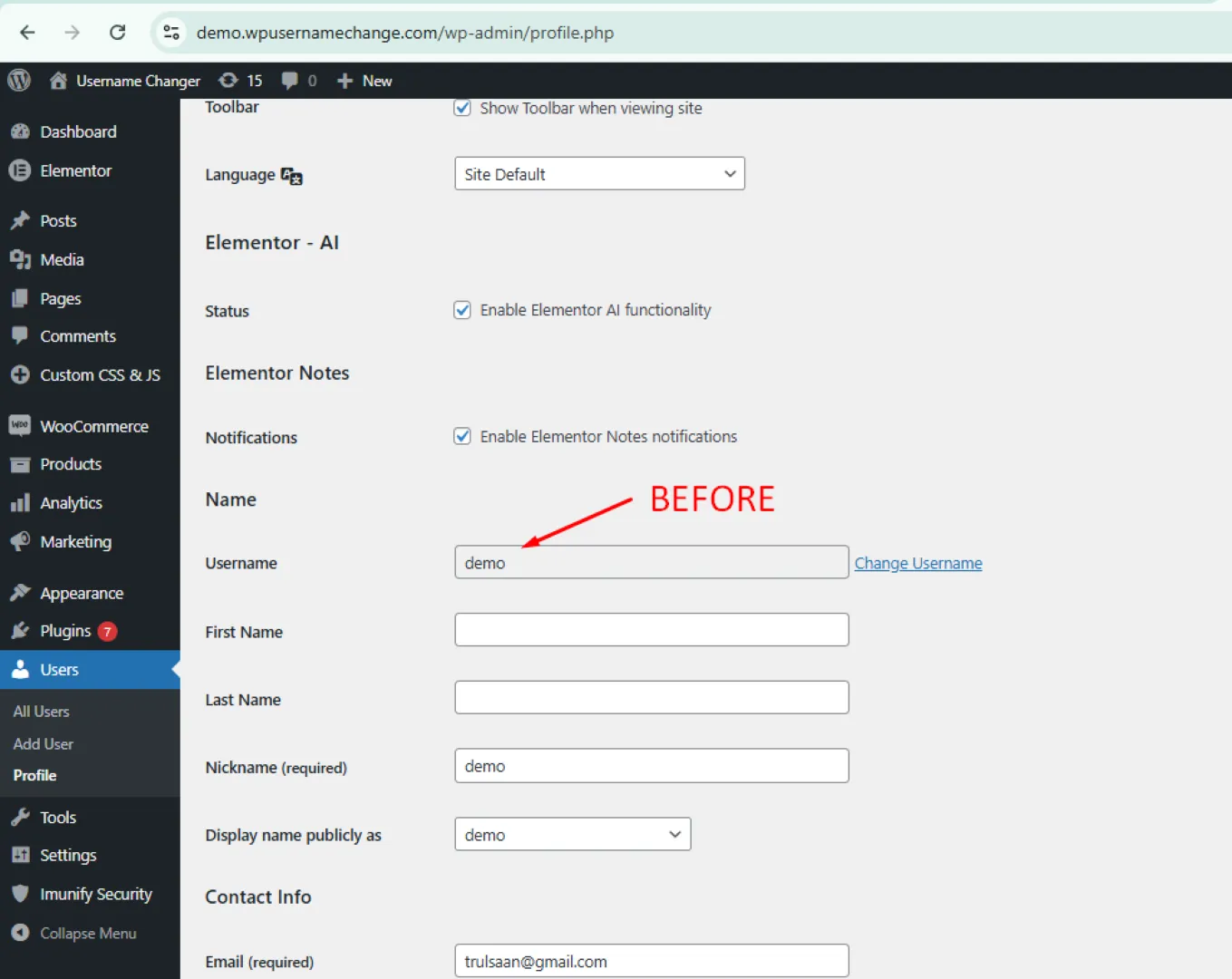
BEFORE:
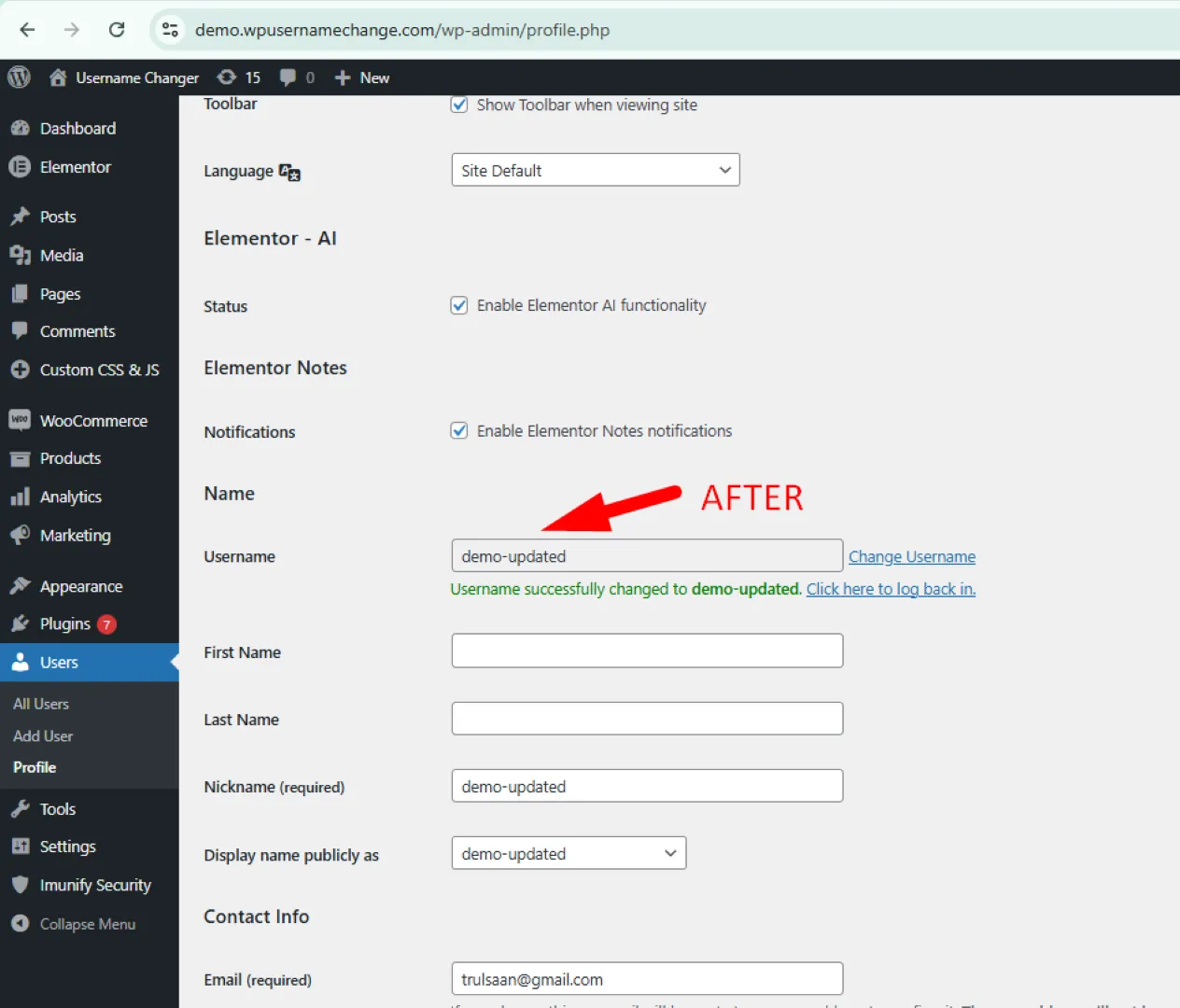
AFTER:
2 Installation & Setup
Setting up the Username Changer plugin is quick and requires minimal configuration.
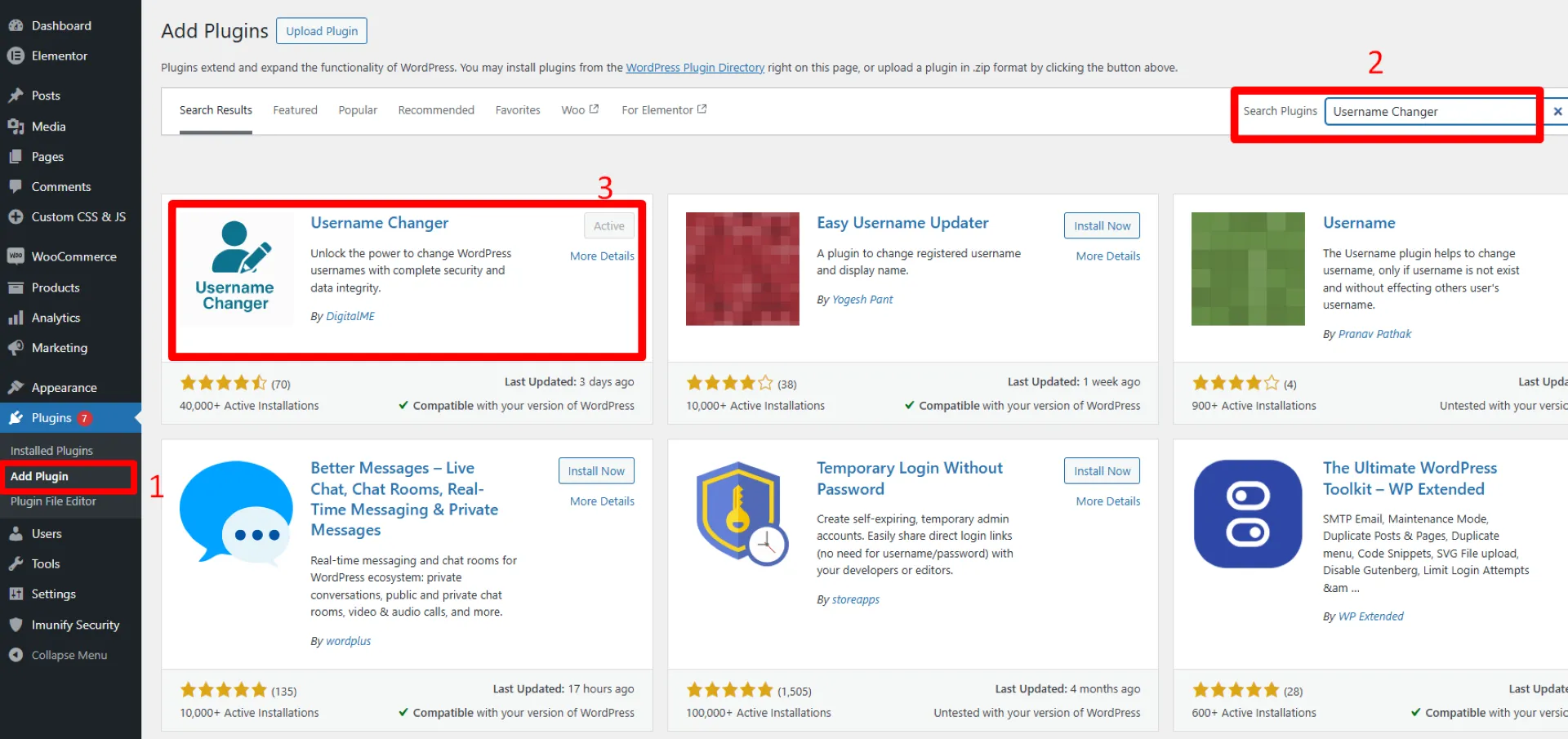
Install the Plugin
- Go to your WordPress Dashboard
- Navigate to Plugins → Add New
- Search for "Username Changer"
- Click Install Now
- Click Activate
General Settings
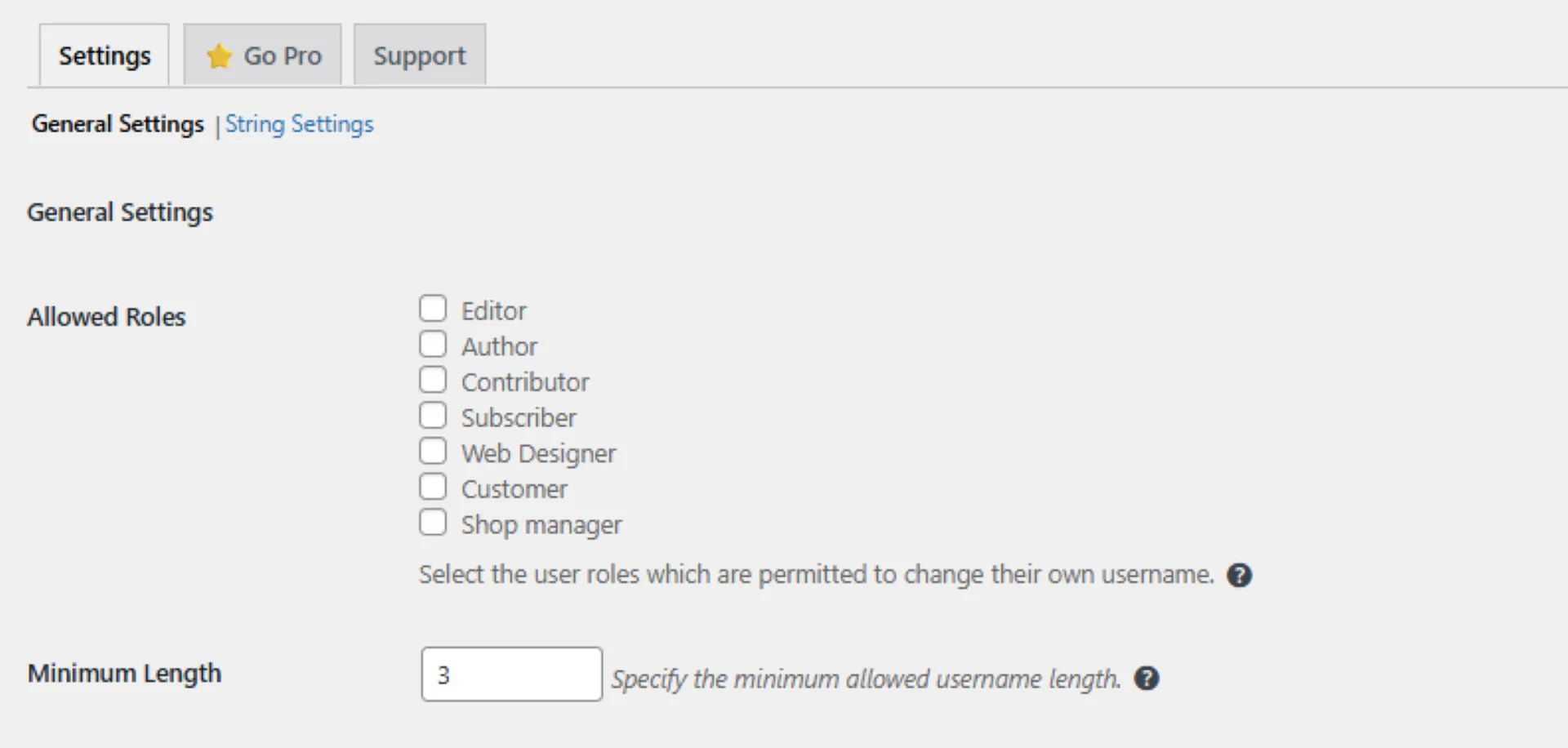
The plugin allows you to control how username changes are handled.
- Allowed Roles – Select which user roles are permitted to change their username
- Minimum Length – Define the minimum allowed username length
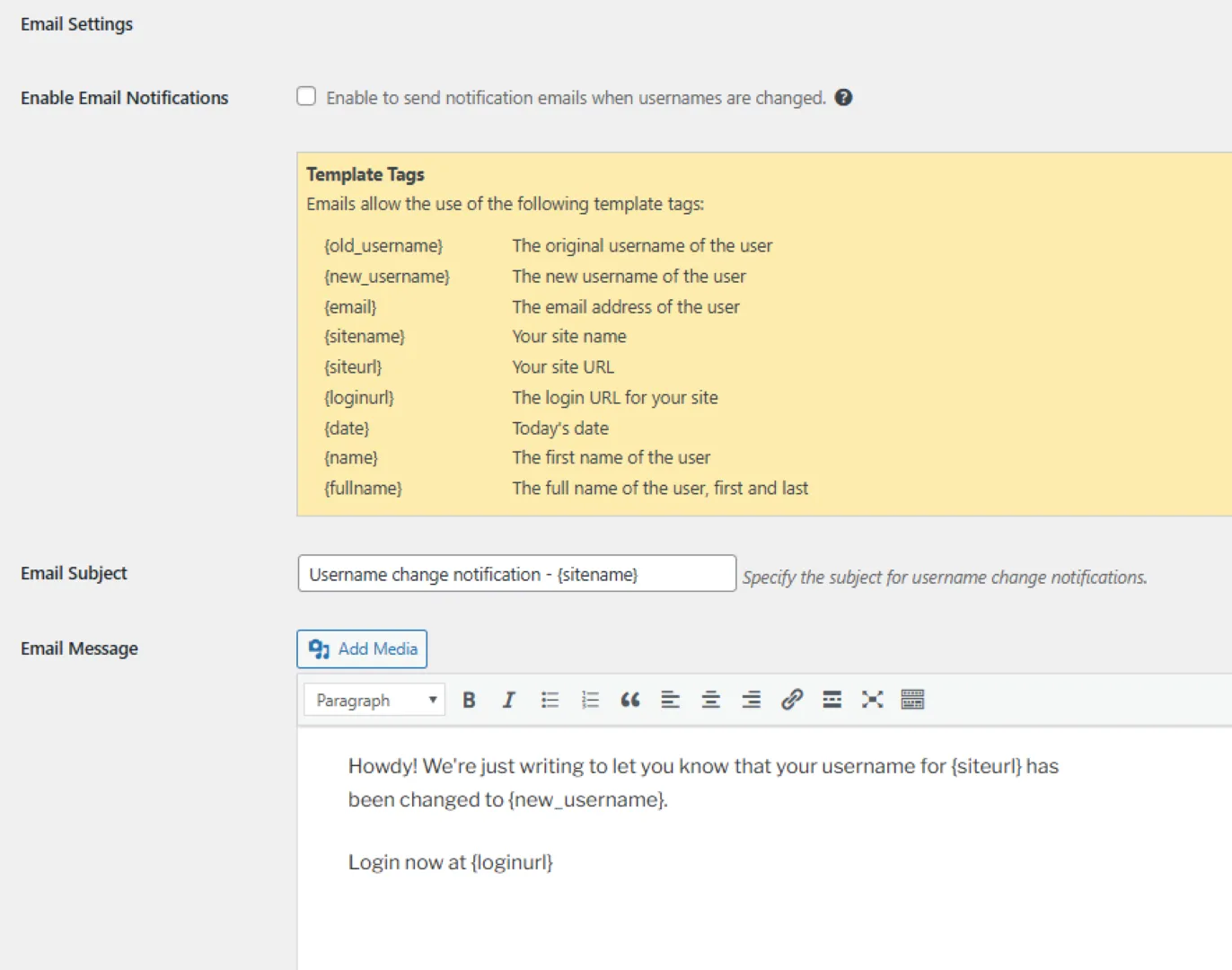
Email Settings
You can configure email notifications for username changes.
- Enable or disable email notifications
- Customize the email subject
- Edit the email message content
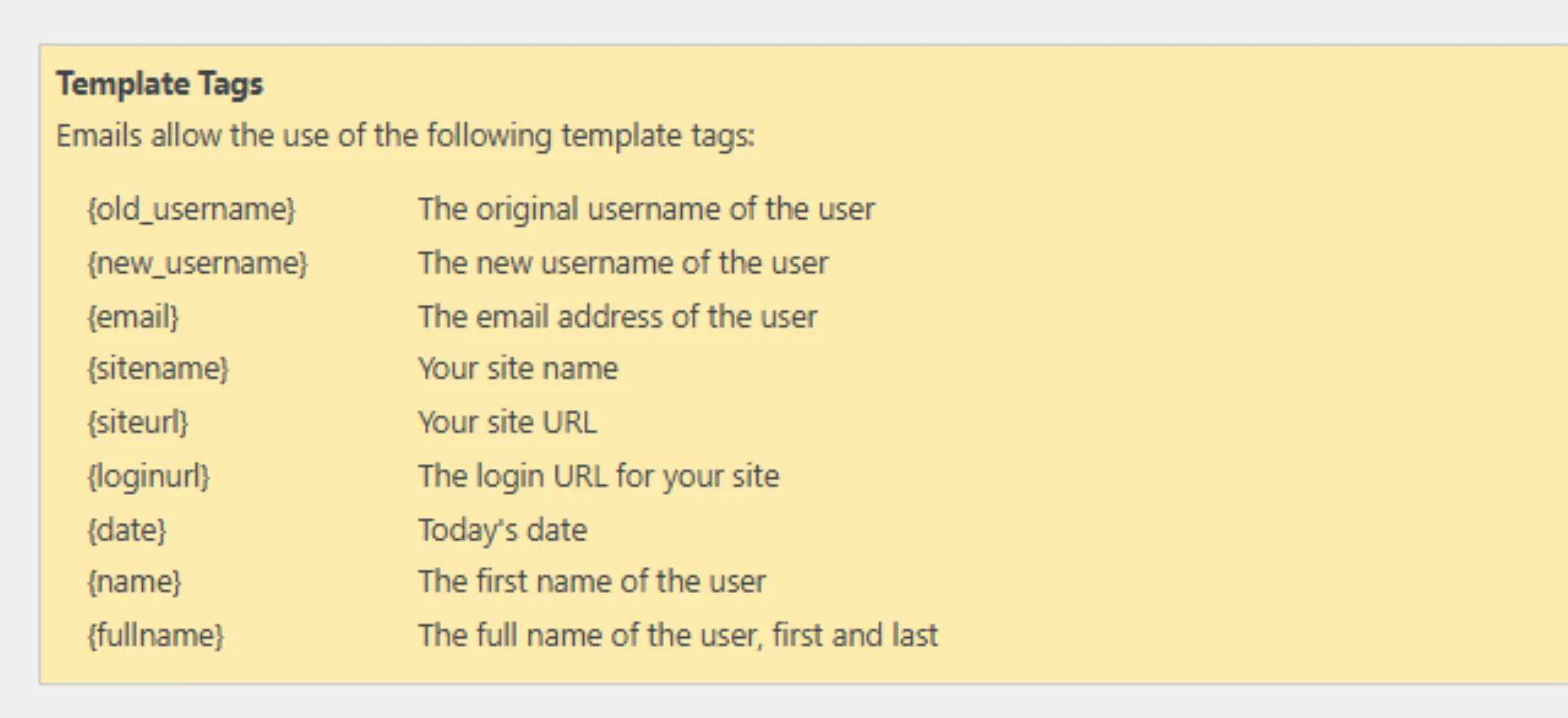
Template Tags
You can use the following placeholders in email messages:
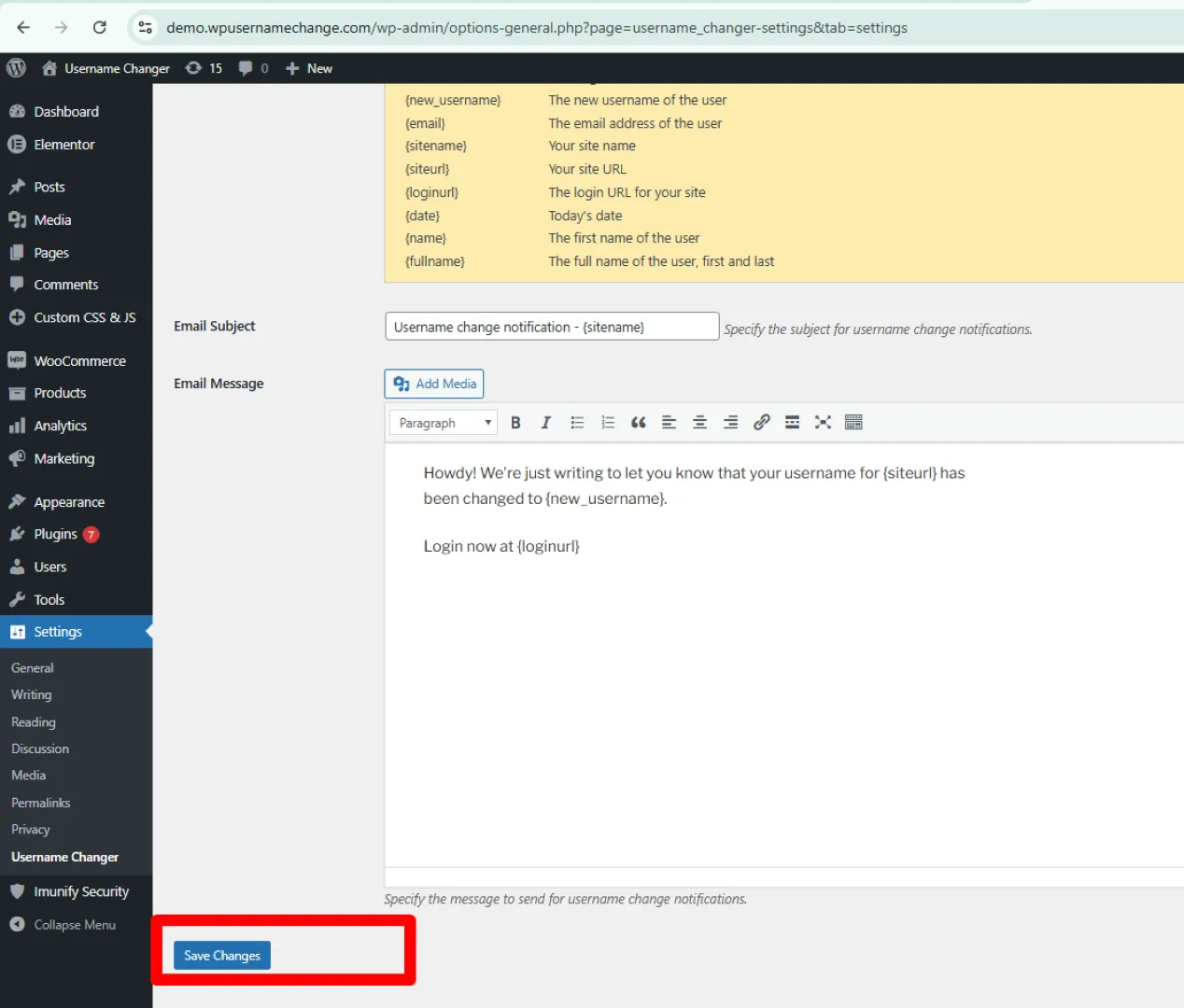
Save Changes
Click Save Changes to apply your settings.
Result:
- Username change permissions are configured
- Email notifications are set
- Plugin is ready for use
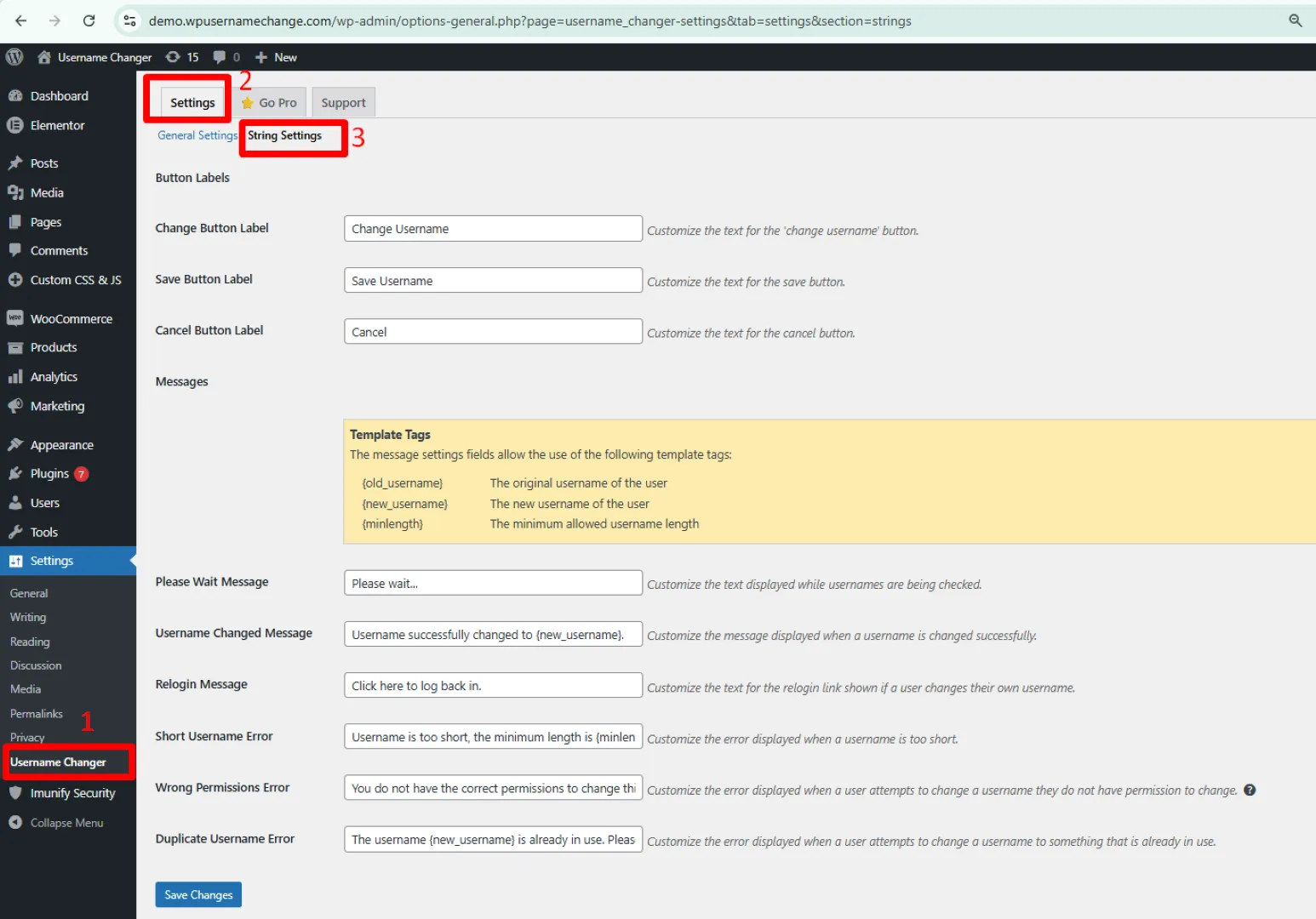
String Settings
The String Settings section allows you to customize labels and messages displayed during the username change process.
Button Labels
You can modify the text of action buttons.
- Change Button Label – Text for the change username button
- Save Button Label – Text for saving changes
- Cancel Button Label – Text for canceling the action
Message Customization
You can customize system messages shown to users.
- Please Wait Message – Displayed while the username is being processed
- Username Changed Message – Shown after a successful update
- Relogin Message – Prompt displayed for logging in again
Error Messages
You can define custom messages for different scenarios.
- Short Username Error – Triggered when username is below minimum length
- Wrong Permissions Error – Shown when user lacks permission
- Duplicate Username Error – Displayed when username already exists
Template Tags
Dynamic placeholders can be used inside messages.
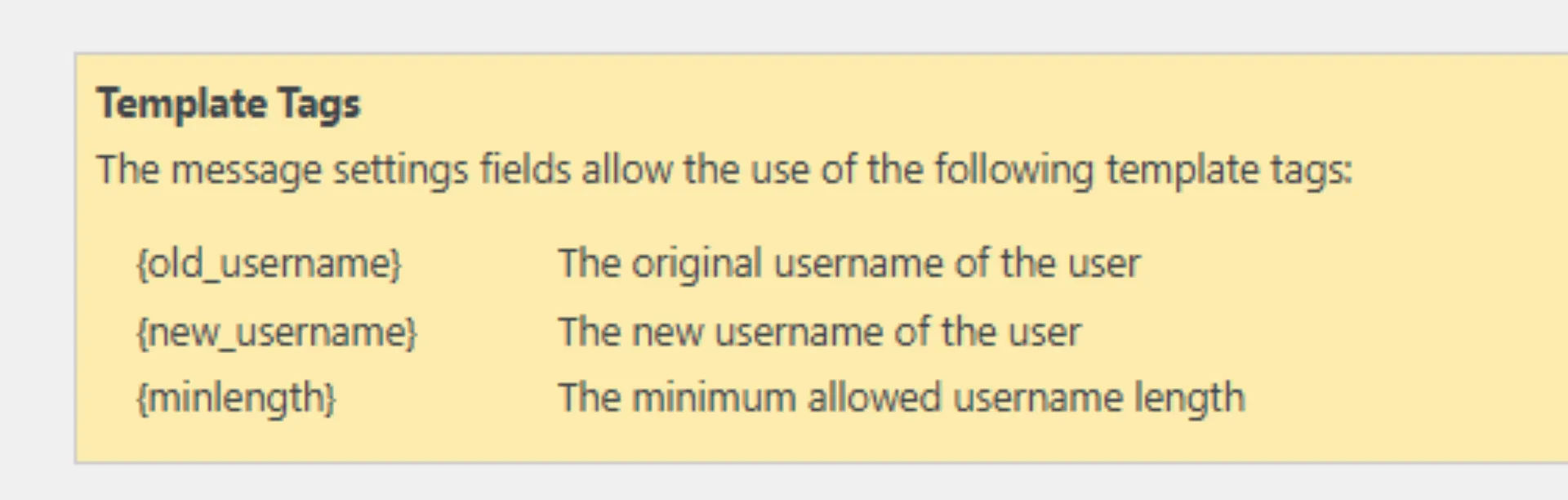
Result:
- Fully customizable user interface text
- Improved user experience
- Clear communication during username changes
3 Premium Features Overview
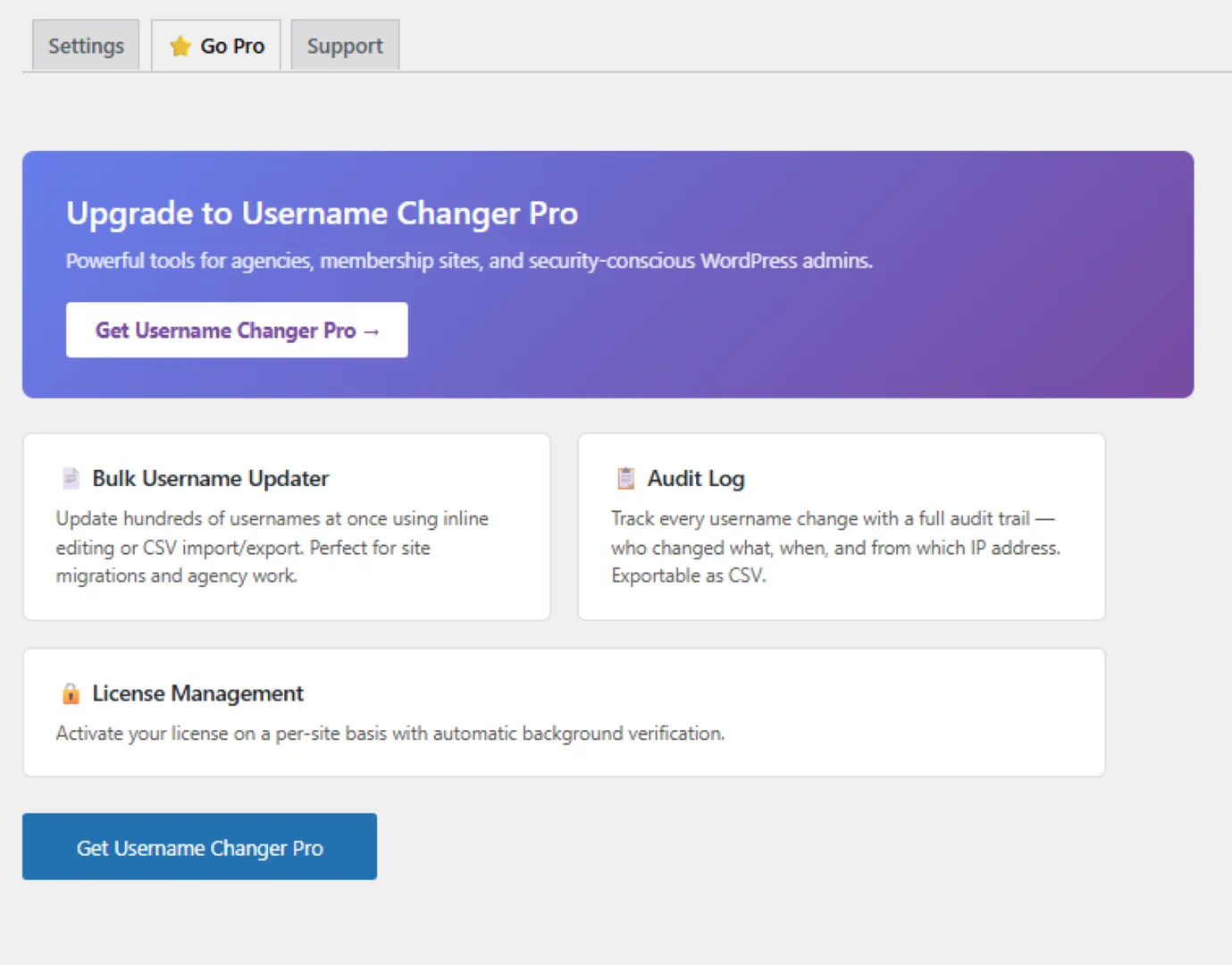
The Username Changer PRO version extends the plugin with advanced tools for managing usernames at scale and maintaining full control over user activity.
Bulk Username Updater
Update multiple usernames at once via inline editing or CSV import. Ideal for large websites, migrations, and agency workflows.
Audit Log
Track who changed a username, view old and new values, see timestamps and IP addresses, and export logs as a CSV file.
Result:
- Efficient management of usernames at scale
- Complete visibility of user activity
- Improved control and security across your website
4 Installing & Activating the PRO Version
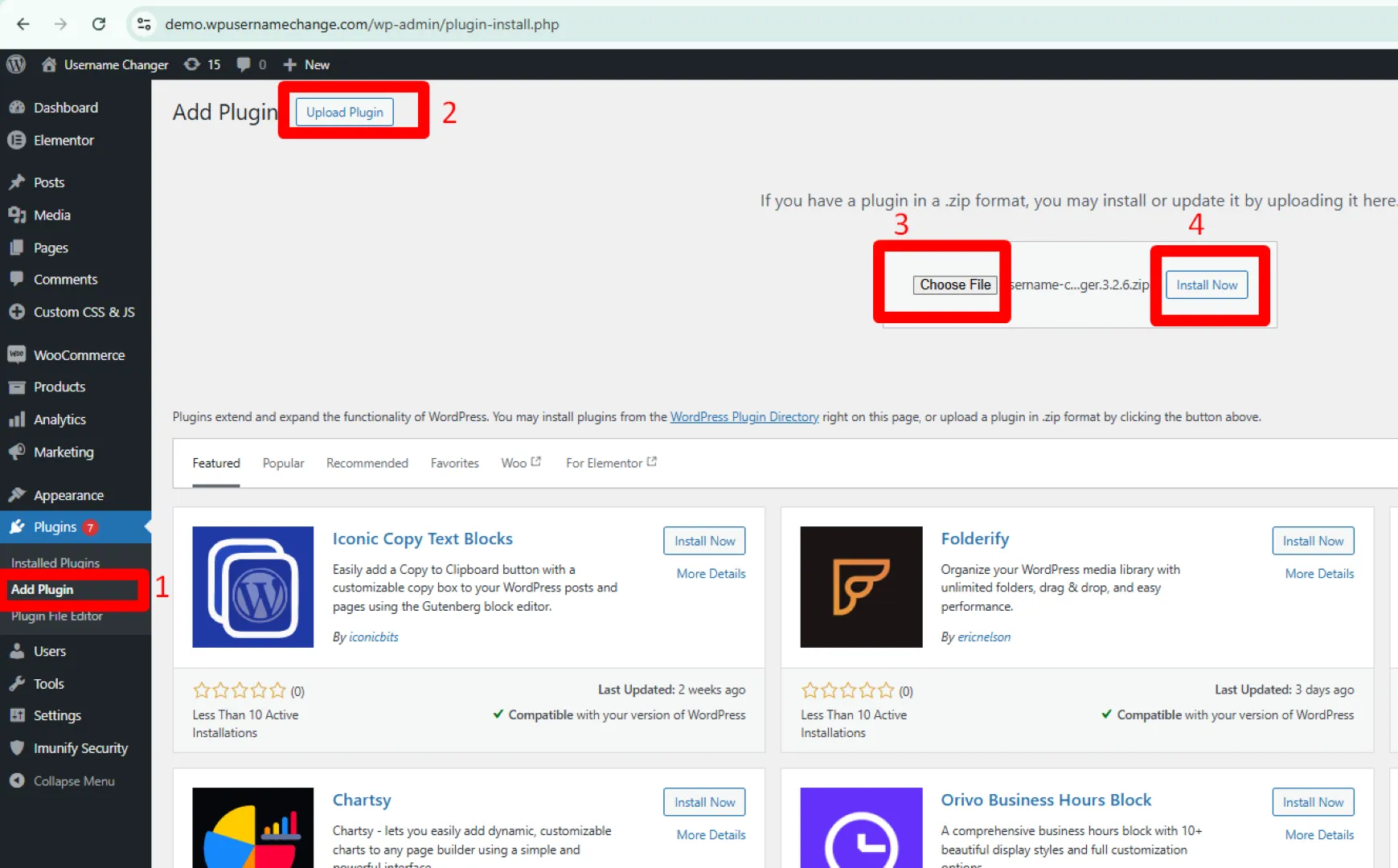
The PRO version is installed manually by uploading the plugin file to your WordPress website.
Upload the PRO Plugin
- Go to your WordPress Dashboard
- Navigate to Plugins → Add New
- Click on Upload Plugin
- Click Choose File and select the PRO plugin
.zipfile - Click Install Now
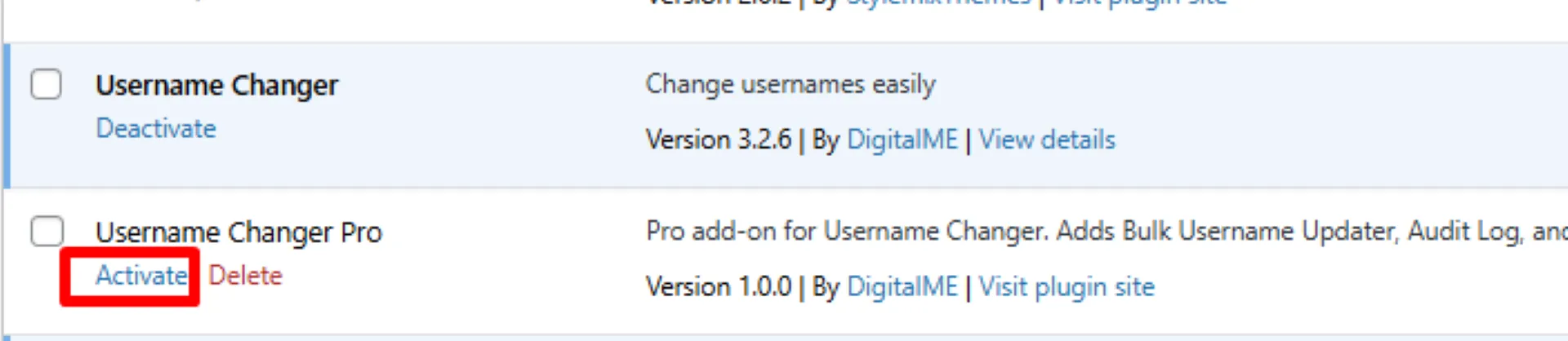
Activate the PRO Plugin
Once the plugin is installed:
- Click Activate Plugin
- The PRO version will now be enabled on your website
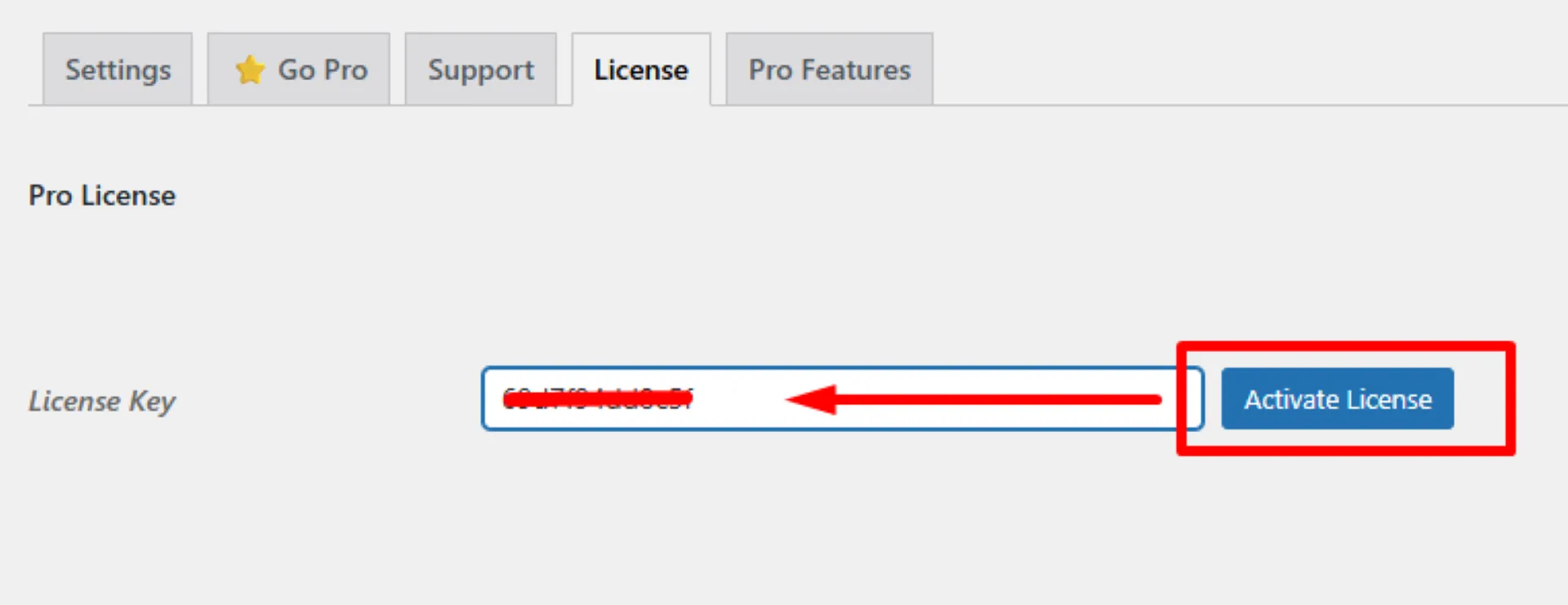
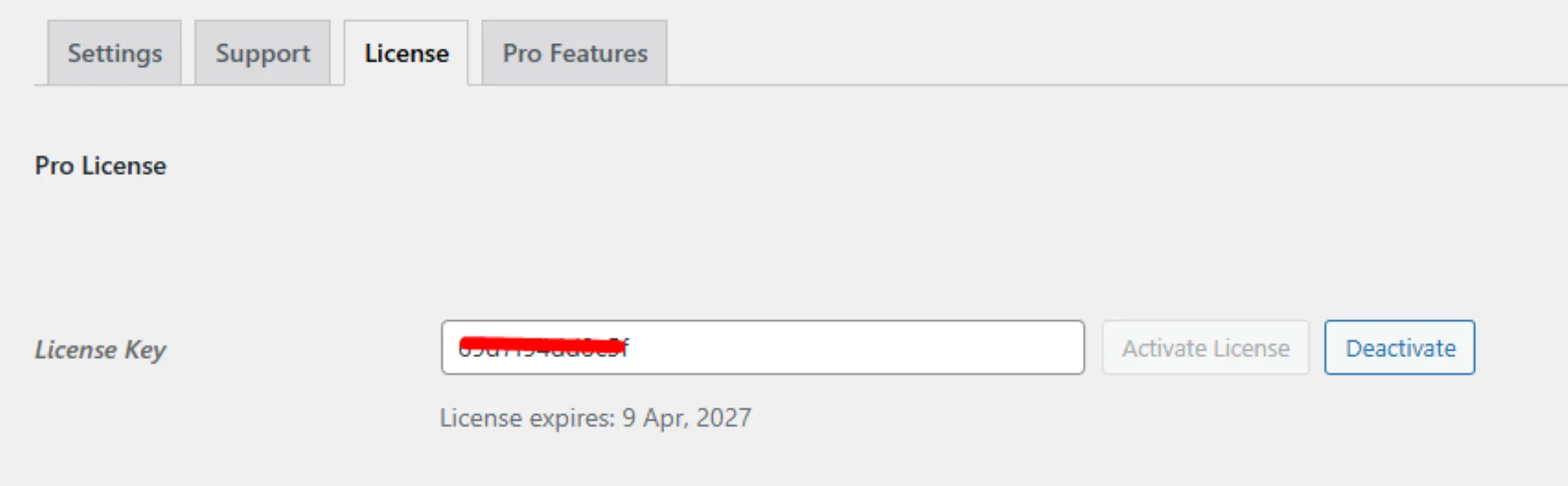
Activate License
Once the PRO version is active, open Settings → Username Changer. To unlock premium features fully:
- Open the License section
- Enter your valid license key
- Click Activate License for the current website
Result:
- The PRO plugin is installed and activated
- Premium tools become available
- License verification enables full PRO access
5 Username Change Log

The Username Change Log records all username changes made on your website.
View Change History
The log displays details of each username update.
| Column | Description |
|---|---|
| Date | When the change occurred |
| Changed By | User who made the change |
| Old Username | Previous username |
| New Username | Updated username |
| IP Address | Source of the request |
| Status | Result of the change |
Search Logs
You can search through the log entries.
- Use the search field to find specific records
- Filter changes based on usernames or activity
Export Logs
You can download the log data for external use.
- Click Export CSV
- Download the complete log file
Result:
- Track all username changes
- Maintain transparency and accountability
- Access historical data when needed
6 Bulk Username Updater
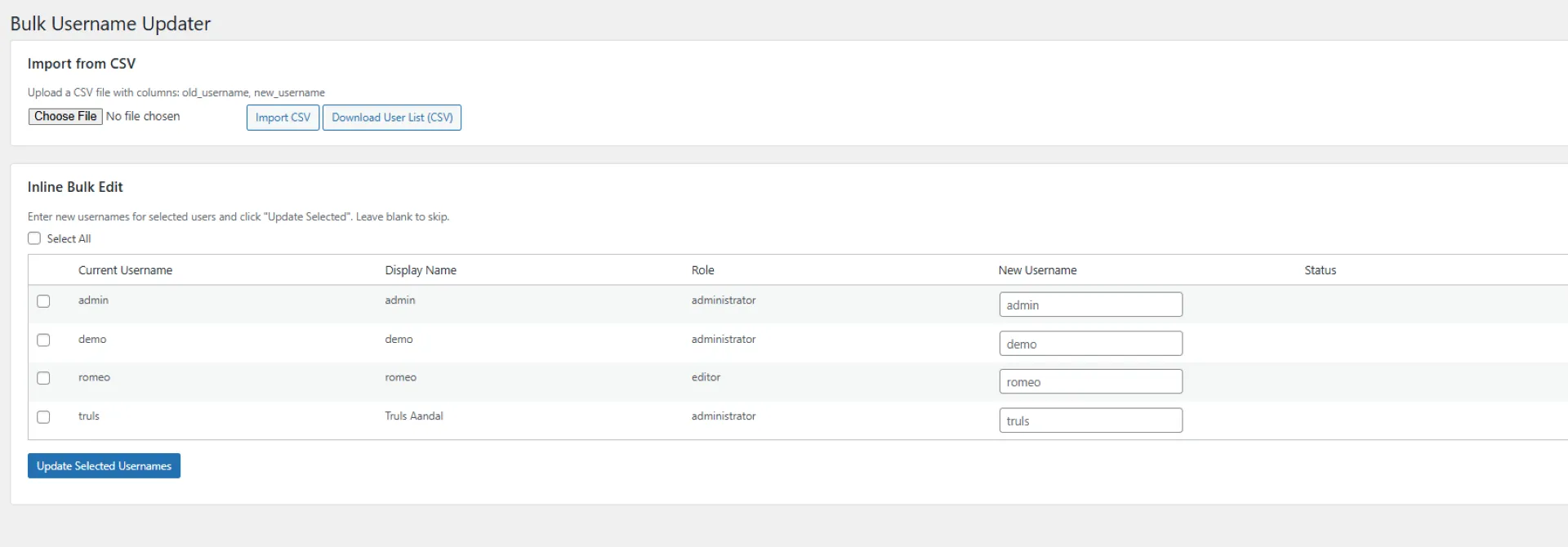
The Bulk Username Updater allows you to update multiple usernames at once using inline editing or CSV import.
Inline Bulk Edit
You can update usernames directly from the dashboard.
- Go to Settings → Bulk Username Updater
- Select users using the checkboxes
- Enter new usernames in the New Username field
- Click Update Selected Usernames
Import from CSV
You can update usernames in bulk using a CSV file. The CSV file should contain:
- Old username
- New username
- Click Choose File
- Upload the CSV file
- Click Import CSV
Download User List
You can export the current user list for editing.
- Click Download User List (CSV)
- Edit usernames in the file
- Re-upload using the import option
Result:
- Update multiple usernames in a single action
- Save time on large websites
- Simplify migrations and bulk changes